
While experimenting with open-webui I was looking for options to use local LLM resources for image creation. Besides the commercial models, openwebui offers two alternatives : Automatic1111 and ComfyUI.
As ComfyUI is mentioned in several other places I decided to have a look at it.
Installation
In order to install ComfyUI I was looking for a docker solution. In the end I settled with this one:
https://github.com/YanWenKun/ComfyUI-Docker
Installation is as easy as creating a matching docker-compose.yml file (or you could just run it with plain docker as described on the github page itself):
services:

  comfyui:
    image: yanwk/comfyui-boot:cu128-slim
    container_name: comfyui
    ports:
      - "8188:8188"
    environment:
      CLI_ARGS: "--disable-xformers"
    volumes:
      - ./fs/root:/root
      - ./fs/root/ComfyUI/models:/root/ComfyUI/models
      - ./fs/root/.cache/huggingface/hub:/root/.cache/huggingface/hub
      - ./fs/root/.cache/torch/hub:/root/.cache/torch/hub
      - ./fs/root/ComfyUI/input:/root/ComfyUI/input
      - ./fs/root/ComfyUI/output:/root/ComfyUI/output
      - ./fs/root/ComfyUI/user/default/workflows:/root/ComfyUI/user/default/workflows
    deploy:
      resources:
        reservations:
          devices:
            - driver: nvidia
              count: all
              capabilities: ["gpu"]
and run
linux # docker compose pull
linux # docker compose up
within the directory containing the docker-compose.yml file.
If everything went according to plan you should be able to access ComfyUI using http://<hostname>:8188.
Install missing model files
One of the first things you need to do is provide ComfyUI with the required model files.
Once you select one of the provided templates ComfyUI will prompt for downloading the (most likely) missing model files:
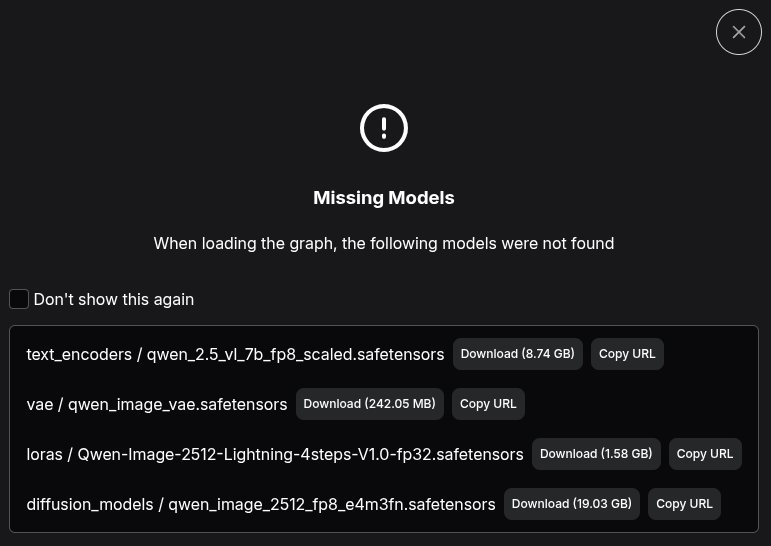
While the download URL is specified in this dialog, we still need to figure where to put those files.
Looking around the directory ComfyUI/models/ seems to contain sub-directories like textencoders/, vae/, loras/ and diffusion_models/ – that are mentioned in the dialog.
However I’m a lazy guy and I hate to download files by hand (to be honest I don’t get it, why there’s no button like: download this file to the right place on the server anyway).
Automating downloads
So while looking for a little more automation, saving the selected template to a file gave some clues about how to do that.
In my case the template was called image_qwen_Image_2512.json and it was stored in the directory ComfyUI/user/default/workflows/.
Looking into that file solves the mystery of the file locations:
linux # jq < http://comfyui/user/default/workflows/image_qwen_Image_2512.json<...>
                {
                  "name": "qwen_2.5_vl_7b_fp8_scaled.safetensors",
                  "url": "https://huggingface.co/Comfy-Org/Qwen-Image_ComfyUI/resolve/main/split_files/text_encoders/qwen_2.5_vl_7b_fp8_scaled.safetensors",
                  "directory": "text_encoders"
                }

<...>
So all the information seems to be contained in the template .json file. Time to establish automated downloads:
linux # cd ComfyIO/models
linux # jq -r '.[]?.subgraphs?[]?.nodes?[]?.properties?.models?[]? | "curl -L -o \(.directory)/\(.name) \(.url)"' ../user/default/workflows/image_qwen_Image_2512\ \(2\).json | sort | uniq
curl -L -o diffusion_models/qwen_image_2512_fp8_e4m3fn.safetensors https://huggingface.co/Comfy-Org/Qwen-Image_ComfyUI/resolve/main/split_files/diffusion_models/qwen_image_2512_fp8_e4m3fn.safetensors
curl -L -o loras/Qwen-Image-2512-Lightning-4steps-V1.0-fp32.safetensors https://huggingface.co/lightx2v/Qwen-Image-2512-Lightning/resolve/main/Qwen-Image-2512-Lightning-4steps-V1.0-fp32.safetensors
curl -L -o text_encoders/qwen_2.5_vl_7b_fp8_scaled.safetensors https://huggingface.co/Comfy-Org/Qwen-Image_ComfyUI/resolve/main/split_files/text_encoders/qwen_2.5_vl_7b_fp8_scaled.safetensors
curl -L -o vae/qwen_image_vae.safetensors https://huggingface.co/Comfy-Org/Qwen-Image_ComfyUI/resolve/main/split_files/vae/qwen_image_vae.safetensors
If the output looks good to you (and if you’re brave or crazy enough): just add “| bash” to the above command line to execute the downloads.
Image creation with openwebui
As mentioned in the very beginning, ComfyUI can also be used to generate images in openwebui. In order to do that we need to save the template using the “Export (API)” function.
This will download a (reduced) JSON file that needs to be imported into openwebui (Admin panel -> Settings -> Images).
However this is not sufficient: You’ll also have to match certain entries to settings provided by openwebui. For image creation these are: text, lora_name, width, height, steps and seed.
While the following may not work with all templates, for the simple ones I tried it did a pretty good job and saved me from a headache:
linux # jq -r 'to_entries[] | select(.value.inputs? | has("lora_name")) | .key' image_qwen_Image_2512.json
197:189
Repeat that command (and replace “lora_name” with the other attributes) and you should have all mappings in place in no time.
Add the resulting IDs to your openwebui config and start creating images …